
How to balance speed and stability when upgrading your laptop storage?
Upgrading your laptop's storage can make it feel like new again. But it's not just about being fast. It's about finding the right balance between speed and stability.

Going for the fastest laptop ssd upgrade can be risky. Thin laptops can overheat, causing the drive to slow down. This might lead to apps freezing, longer startup times, or random slowdowns.
Storage is a big bottleneck in everyday use. Your operating system, apps, and files all live on the internal ssd. If it's slow, everything will feel delayed.
Switching from a hard drive to a solid state drive is a big step. SSDs are much faster, with speeds 4 to 50 times higher than hard drives. They also have no moving parts, reducing the risk of mechanical failure.
Before buying, check your system first. Open Windows Task Manager with Ctrl+Shift+Esc. Then, use the Performance tab to see how your CPU, memory, disk, network, and GPU are doing. For more detailed info, HWiNFO can show you what's inside your system.
Remember, different laptops can have different parts. Even the same model can vary by region. And refurbished laptops might have different hardware. Make sure to check what you have before upgrading your internal ssd.
What “speed vs reliability” really means in a laptop storage upgrade
When you look for a new SSD, you face a choice between speed and reliability. Fast speeds are exciting, but your laptop needs to stay smooth every day. The best upgrades offer quick reads and steady performance, even when things get busy.

Remember, storage isn't the only thing that matters. RAM and heat can slow your system down just as much as a slow drive. A good setup aims for smooth performance without hitting new roadblocks.
Why storage affects everything: boot times, app launches, and day-to-day responsiveness
Storage holds all your system files, app data, and caches. Faster access means quicker boots, app starts, and folder openings. This everyday speed is what most people notice first.
In daily use, the drive handles updates, sync tools, browser caches, and scans. If these tasks cause pauses, your laptop can feel slow. Good nvme stability keeps the system steady during these tasks.
Short-burst benchmarks vs sustained performance in real workloads
Many benchmarks show quick, high peaks that last only seconds. While useful, they don't tell the whole story. Real tasks often need steady performance over long periods, like file transfers or video exports.
Sustained performance also affects thermals and write behavior. Some drives slow down after their cache fills, making big copy jobs take longer. For lasting performance, you want consistent speeds that keep up with your work, not just the initial burst.
Stability and data integrity: why reliability matters as much as peak speed
Reliability means fewer stalls, retries, and weird slowdowns after sleep and wake. When a drive acts up, you might see app stutters, freezes, or failed installs. Over time, this erodes trust more than a slight speed drop.
Data integrity is the silent promise behind every save, update, and file move. Strong error handling and steady firmware behavior lower the risk of corrupted files or broken libraries. In practice, nvme stability and consistent performance keep work flowing smoothly without surprises.
- Speed supports fast boots, quick launches, and seamless responsiveness.
- Reliability supports always on use, stable sleep/wake cycles, and solid data integrity.
- Balance supports sustainable performance when heat, background tasks, and long writes collide.
Laptop SSD upgrade guide, Speed vs Reliability, PCIe Gen4 x4
A good laptop SSD upgrade guide focuses on your daily habits, not just specs. It's about finding the right balance between speed and reliability. Fast data transfers are nice, but reliability is key when you're always on the move.

When PCIe Gen4 NVMe is worth it vs when SATA or older NVMe is enough
Invest in a PCIe Gen4 x4 nvme ssd if you work with big files or games. It's also good for running Adobe apps and keeping many tabs open. This way, your system stays smooth, even when it's busy.
SATA SSDs are a big improvement over hard drives, even on older laptops. They can make your laptop boot in under 10 seconds. Plus, apps launch almost instantly, even without the latest tech.
- Pick PCIe Gen4 x4 for heavy multitasking, frequent updates, and large project folders.
- Pick SATA for SATA-only bays or budget upgrades from HDD where the jump is already huge.
- Pick older NVMe if your laptop supports NVMe but not full pcie gen4 x4 speeds.
Understanding performance metrics: 7400 MB/s sequential read vs IOPS performance
7400 mb/s sequential read is a big number that marketers love. It shows how fast big transfers can be, like copying a video or unpacking an archive.
But for everyday use, IOPS performance is more important. It affects how fast your OS starts, apps launch, and background tasks run. This is where an nvme ssd can feel fast, even if it doesn't hit the highest speeds.
How “always on” workflows (sleep/wake, frequent writes) can reveal NVMe stability issues
In the US, laptops often stay on all day. This can show up driver problems, firmware issues, or brief disconnects. A good guide looks at how reliable the drive is, not just its speed.
Even a fast drive can slow down during long writes or when it gets hot. A good guide checks how well the drive performs over time, not just in a quick test.
Check your laptop’s compatibility before you buy an NVMe SSD
Upgrading your laptop's storage can seem easy, but it's not always the case. Many laptops look the same but have different parts inside. Checking compatibility before buying an NVMe SSD is key to avoid any issues.
First, look at your laptop's service manual for the exact model ID. If it's unclear, watch a teardown video. This step can make a big difference between a successful install and a return.
M.2 length and fit checks
Most laptops have a slot for the m.2 2280 form factor. But, not all have enough space. Before buying an m.2 2280 SSD, make sure the slot is long enough. Also, check if there's a screw and standoff in the right spot.
- Verify the slot keying and that the bay fits the m.2 2280 form factor
- Check for a missing hold-down screw or movable standoff
- Look for nearby parts (battery edge, speaker, shield) that could block the internal ssd
Know the interface your slot really uses
The interface limits your drive's speed more than the box says. Some M.2 slots are SATA-only, while others are PCIe for NVMe SSDs. Some support both, depending on the laptop's wiring.
If your slot has fewer PCIe lanes or an older generation, a fast drive might not reach its full speed. Choosing an internal SSD that matches your laptop's interface limits ensures better performance. This also helps avoid compatibility problems.
BIOS/UEFI and drive recognition
After installing, enter the BIOS/UEFI settings. Make sure the drive shows up and is set as the boot device. If it doesn't, the problem might be a storage mode setting or an older system that needs better support.
Often, firmware updates can fix these issues. Follow the laptop maker's instructions carefully. Keep settings documented so you can restore them if needed.
Thermals and sustained speed: how to avoid thermal throttling
Fast storage can feel slow when it gets too hot. Thermal throttling happens when parts of a laptop slow down to avoid damage. This can cause stuttering, lag, and uneven performance during big tasks.
Many laptop chips start to slow down around ~90°C, mainly in thin designs. These designs have small heatsinks and short paths for air to escape. Over time, how well a laptop handles heat can make a big difference.
Why thin laptops throttle: heat buildup can reduce SSD speed to protect hardware
Thin laptops focus on being portable, not on having room for heat. During long tasks, the SSD controller and nearby parts get hot together. As it gets warmer, the system might slow down to keep things stable, making tasks take longer.
Some laptops use smart heat management to balance fan noise, power use, and temperature. Adding an active heat guard on the storage side helps the laptop react faster to heat, avoiding sudden slowdowns.
Laptop thermal management basics: airflow, dust, and chassis design
Cooling works through conduction and convection. Heat moves from chips to heatsinks, then fans blow it out. This keeps the laptop cool.
Dust can quietly harm performance. It blocks airflow and raises temperatures, leading to throttling. Keeping vents clear is a simple way to improve cooling.
Practical cooling tactics: stands, cooling pads, and keeping vents clear during long transfers
- Elevate the rear with an angled stand to improve intake airflow and reduce heat soak during long transfers.
- Use a cooling pad with fans when you expect sustained performance, like large game installs or 4K video exports.
- Check vents before heavy work; even a soft surface can block airflow and trigger thermal throttling.
- For older laptops, consider reapplying thermal paste every one to two years: power off, unplug, remove old paste with isopropyl alcohol, apply fresh paste, and reassemble.
These habits work with modern hardware's smart heat management. They aim for steady temperatures, fewer slowdowns, and consistent performance during long tasks.
Choosing the right NAND flash and controller features for stability
Speed specs are easy to find, but real-world use is what matters. A good solid state drive keeps things running smoothly during updates and installs. This reliability helps keep your work flowing without unexpected slowdowns.
NAND flash basics: why endurance and consistency matter for laptop upgrade longevity
nand flash stores your files and wears out a bit with each write. Laptops generate steady write traffic from various sources. Over time, weaker flash can lead to uneven behavior, making your system feel slow.
A strong controller ensures efficient and predictable write patterns, even as the drive fills up. This steadiness supports sustained performance during long installs and big patches. It also plays a key role in nvme stability, keeping your laptop running smoothly all day.
LDPC error correction and data integrity: what it does and why you want it enabled
As cells age, the controller must work harder to read them accurately. ldpc error correction helps catch and fix more bit errors before they harm your files. This support protects data integrity, even when temperatures change or the drive is heavily used.
For a laptop that travels, these factors are critical. A drive that handles noise and wear well is less likely to cause app crashes or corrupted downloads. This quiet feature is what makes a modern solid state drive dependable.
Sequential write stability: why large file copies can expose weak sustained performance
Large transfers quickly reveal sequential write stability. Many drives perform well at first but then slow down sharply. In thin laptops, heat can worsen this drop, affecting sustained performance during tasks like video exports and backups.
- Watch for consistency during long writes, not just peak numbers from a quick benchmark.
- Match the drive to your workload if you often copy large folders or export media.
- Remember that cooling limits can affect nvme stability, specially under continuous writes.
Plan the upgrade to protect data integrity and reduce downtime
Upgrading your laptop's storage can seem easy until a small issue pops up. You want your laptop to run smoothly with fewer surprises. Planning for data safety is key.
Backups first: using a system image so you can roll back quickly if something breaks
Before you start, make a full system image. This backup lets you quickly restore everything if the new drive or updates cause problems.
Use Windows Backup or Macrium Reflect for this. Save the image on an external drive. Make sure it finishes without errors before you start.
Cloning vs clean install: choosing the safest path for a laptop storage upgrade
Cloning keeps your setup the same and saves time. It's a popular choice for upgrades. A clean install is better for systems with too much junk or crashes. But, it takes longer because you have to reinstall everything.
- Cloning: Connect the new SSD, initialize it if needed, then clone in Macrium Reflect, MiniTool Partition Wizard, or iSumsoft Cloner. Swap the drives when done.
- Clean install: Install Windows fresh, apply updates, reinstall apps, then move data back from your system image backup or other backup set.
For either method, shut down, unplug, and remove the battery if possible. Use a precision screwdriver, keep screws together, and take photos to avoid mistakes.
Verification steps after install: confirming the drive is detected and boots normally
After swapping, enter BIOS/UEFI and check the SSD is detected and set as the boot device. Then, boot into Windows and make sure files and apps work as expected, if cloning was used.
Once stable, you can use the old drive for extra storage if your laptop allows it. Don't manually defragment SSDs; Windows does it automatically, and extra defrag can wear it out.
Windows storage behaviors that influence stability after a laptop SSD upgrade
After upgrading to an SSD, Windows might feel fast at first. But it can slow down during updates or when moving big files. This isn't always the drive's fault. It's how Windows uses free space in the background.
Managing these behaviors helps keep your system fast and reliable. You don't need to constantly adjust settings.
System reserved storage: how Windows reserves space for updates, caches, and predictable stability
Windows sets aside space for updates, temporary files, and caches. This reserved space helps updates complete smoothly. It also keeps disk use steady, supporting stability over time.
You can check this in Settings → Storage → Show more categories. Here, Windows shows what's taking up space. If the drive is full, Windows might reduce reserved space for updates. But this can cause slowdowns.
Storage Sense and Cleanup recommendations: keeping free space to prevent slowdowns
Storage Sense automatically removes temporary files and Recycle Bin items. Turning it on helps keep free space without manual effort.
Cleanup recommendations scans your system and suggests safe removals. It flags temporary files, old Windows installations, large unused files, and rarely used apps. These can quietly eat into your SSD.
Why keeping headroom matters: low free space can hurt sustained performance and responsiveness
Keeping some free space is key because SSDs work harder when space is tight. Low free space can slow down updates, caching, or long writes. This makes everyday tasks feel less responsive.
To maintain performance, leave a buffer for Windows to page, cache, and update. This small habit improves speed and reliability. It's essential for laptops that run many background services.
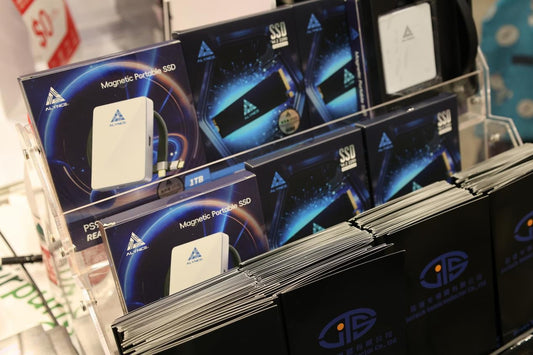
ALYNCE JS990 PRO approach to unified performance and intelligent thermal management
ALYNCE sees laptop storage as a whole system, not just parts. It combines speed and stability into one goal. This approach is called the "Alliance" mindset.
The JS990 PRO is designed for fast data transfer without slowdowns. It fits in most modern laptops and aims to reduce bottlenecks. This means faster boots, app starts, and big file transfers.
Thin laptops can slow down fast drives, so ALYNCE focuses on keeping cool. The intelligent thermal guard helps manage heat. This is key for long tasks like writing, installing games, and exporting videos.
Make sure the JS990 PRO fits your laptop before buying. Check for the right slot, NVMe support, and BIOS detection. Then, think about your usage to see how ALYNCE's unified approach can help.
FAQ
What does “speed vs. reliability” mean in a laptop SSD upgrade?
It's about choosing between fast speeds and steady performance. Fast SSDs can get hot and unstable. But, a reliable SSD feels faster because it stays consistent.
What real-world signs suggest my storage is the bottleneck?
Look for slow boot times, app launches, and stuttering. Also, if apps fail sometimes, it might be your storage.
How much faster is an SSD than a hard drive?
SSDs are 4 to 50 times faster than HDDs. They also have no moving parts, making them safer for laptops.
How do I diagnose whether I need a laptop storage upgrade or something else?
Open Windows Task Manager and watch the Disk activity. If it's always busy, you might need a new SSD. HWiNFO can give you more details.
Why can two “identical” laptop models have different SSD compatibility?
Laptops from the same model can have different parts. Always check the SSD compatibility before buying.
What will I actually feel from faster storage?
Faster storage means quicker boot times and app launches. It makes your laptop feel more responsive.
What does “reliability” or “stability” mean for an NVMe SSD in a laptop?
Stability means the SSD works well under real use. It should handle updates and background tasks smoothly.
Why do benchmark results not always match real laptop performance?
Benchmarks show peak speeds, but real use tests sustained performance. Many drives slow down after a burst.
Is PCIe Gen4 NVMe worth it for most U.S. laptop buyers?
PCIe Gen4 is good for heavy users. It's worth it for those who need fast storage for large files and apps.
What’s the difference between 7400 MB/s sequential read and IOPS performance?
A: Sequential read shows large file transfers. IOPS performance shows how well it handles small tasks. Both matter for daily use.
Why do “always on” laptop patterns expose NVMe stability issues?
Laptops sleep and wake often, which can reveal stability problems. This is more common than in quick benchmarks.
How do I confirm an M.2 2280 SSD will physically fit?
Check the M.2 2280 size and if your laptop supports it. Make sure you have the right screws for installation.
Can an M.2 slot be SATA-only even if the SSD looks like NVMe?
Yes, some slots are SATA-only. Make sure your slot supports NVMe for the best performance.
What BIOS/UEFI steps matter after installing a new internal SSD?
Enter BIOS/UEFI to set the SSD as the boot device. Updates can improve compatibility and stability.
What is thermal throttling, and why does it matter for SSD sustained performance?
Thermal throttling slows down the SSD to prevent damage. It's common in thin laptops that can't cool well.
What are the basics of laptop thermal management I can control?
Cooling depends on heat transfer and air movement. Keeping vents clear and using thermal paste can help.
What practical cooling tactics help maintain NVMe SSD speed?
Cooling pads and angled stands can improve airflow. This helps keep the SSD running smoothly.
How do NAND flash and controllers affect laptop SSD reliability?
NAND flash and controllers handle write activity. A good controller ensures stable performance and less wear.
What does LDPC error correction do, and why should I care?
A: LDPC error correction protects data from corruption. It's important in laptops that run hot or stay on a lot.
Why does “sequential write stability” matter for laptop upgrades?
Stability during long writes is key. Some SSDs slow down after a burst, which can affect performance.
What is Windows “system reserved storage,” and why does it affect stability?
System reserved storage helps updates succeed. Low space can cause problems, so keeping some free is important.
Where can I see reserved storage and what’s using my space?
Check Settings → Storage to see reserved space. It helps you plan for updates and caching.
How do Storage Sense and Cleanup recommendations help keep SSD performance stable?
A: Storage Sense and Cleanup help free up space. They remove temporary files and unused apps.
Why does low free space hurt speed and sustained performance?
Low space limits room for caches and updates. This can slow down your SSD over time.
How does ALYNCE position “unified performance architecture” for laptop SSD upgrades?
ALYNCE focuses on seamless performance. It aims to balance speed and stability for real use.
What is the ALYNCE JS990 PRO, and who is it for?
The ALYNCE JS990 PRO is for pro users. It offers fast Gen4 speeds without sacrificing stability.
How does ALYNCE address laptop thermal limits and sustained transfers?
ALYNCE uses Alliance control logic and thermal management. It aims to keep performance steady, even when hot.
What should I verify before buying the ALYNCE JS990 PRO or any PCIe Gen4 NVMe SSD?
Check if your laptop supports the M.2 2280 size and NVMe. Make sure your system can run PCIe Gen4 x4.